
A Friendly Guide to Keeping Your RTF Reports Neat and Inline with Conditional Regions
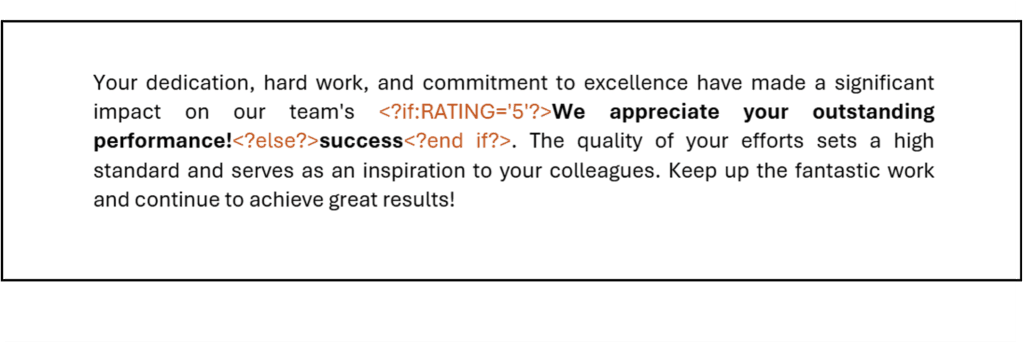
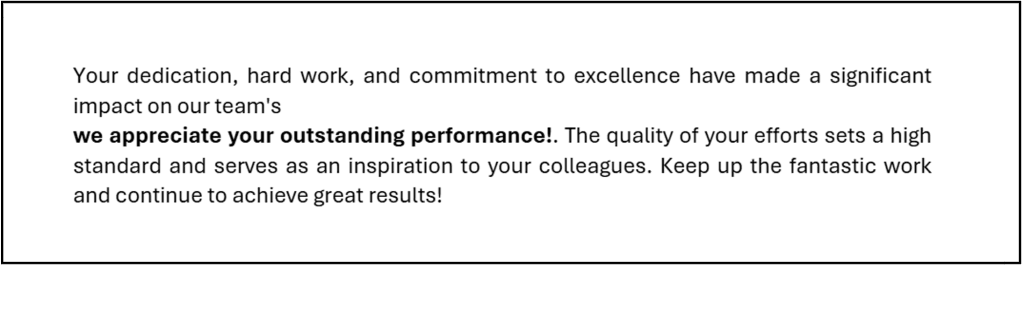
Have you ever noticed how frustrating it can be when a special message in your report like a “Special Note” for top-performing employees suddenly jumps to the next line, throwing off your whole layout? Don’t let this happen! In BI Publisher, you can use conditional regions to show specific information, but without the right technique, text can shift and create messy, unprofessional reports. Let’s explore a simple, effective solution to keep your text inline and your reports looking sharp.
Why This Matters
Imagine you’re creating a letter report to highlight employees, and you want to include a “Special Note” only for those with a performance rating of “5.” If that note shifts to a new line because of a conditional region, your report might look cluttered, spaced unevenly, or even confuse readers. Keeping everything inline ensures your reports are clean, professional, and easy to understand exactly what your clients and team deserve.
The Challenge: Text That Won’t Stay Put
When you use conditional regions in RTF templates, you might run into these problems:
- Unwanted Line Breaks: The text you want to show conditionally jumps to the next line, disrupting the flow.
- Formatting Fumbles: Inconsistent spacing or alignment makes your report look sloppy.
- Confusion Risk: Readers might misinterpret the data if the layout is off.
But don’t worry we’ve got a trick up our sleeve to fix this and keep your reports looking seamless!
RTF
OUTPUT
Your Step-by-Step Solution: Keeping Text Inline Like a Pro
Follow this guide to ensure your conditional text stays right where it belongs in line with the rest of your report. It’s easier than you think!
Step 1: Get Your Data Ready
- Open Microsoft Word and ensure the BI Publisher Add-In is turned on.
- Go to BI Publisher > Sample XML > Load XML Data and upload the XML file with your employee data (like Employee Name and Performance Rating).
- Check your data by clicking Data > Field Browser. This lets you see all the XML tags you’ll work with it’s like a sneak peek at your building blocks!
Step 2: Set Up Your Report Layout
- Start by designing the main part of your letter report. Add fields like Employee Name and Performance Rating where they belong.
- Decide exactly where you want your conditional message (e.g., “Special Note”) to appear. Place your cursor there it’s your spot to shine!
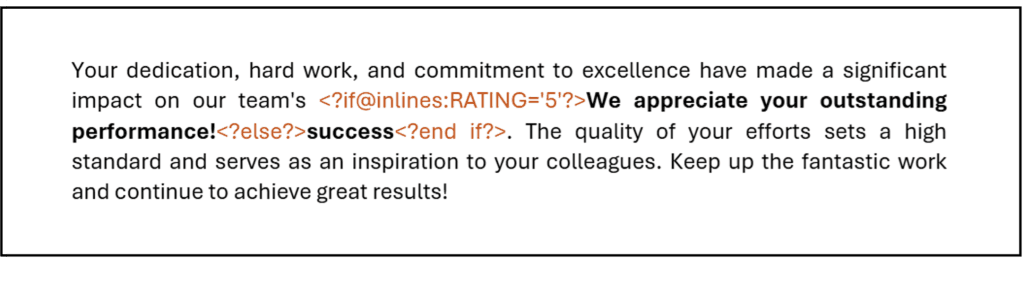
Step 3: Use the Magic of @inlines for Inline Text
Here’s the secret weapon: the @inlines attribute. This little addition tells BI Publisher to keep your conditional text inline, no line breaks allowed.
What does this do? It says, “If the Performance Rating is ‘5,’ show ‘Special Note: Excellent Performance’ right here, inline with the rest of the text.” No jumping, no shifting just smooth, professional results.
RTF
Step 4: Check Your Work
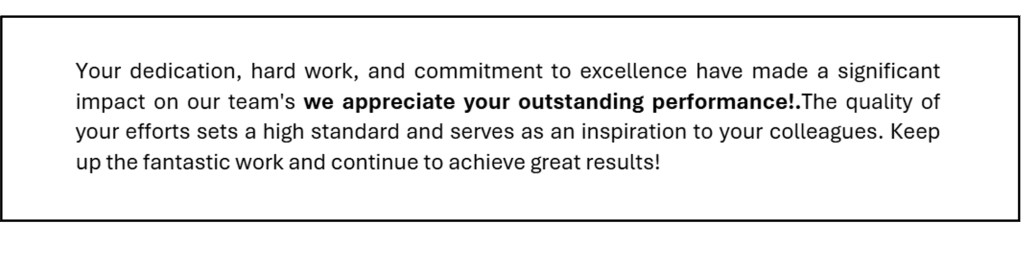
- Hit the Preview button in Word to see how your report looks. Does the “Special Note” appear inline when an employee has a rating of “5”? Perfect!
- Make sure there are no unexpected line breaks or awkward gaps. If everything looks good, you’re on the right track.
OUTPUT
Step 5: Save and Share Your Template
- Save your RTF template (that’s the file you’ve been working on).
- Upload it to the BI Publisher catalog so it’s ready to use.
- Link it to the right data model to ensure your XML data connects smoothly. It’s like giving your report a backstage pass!
Step 6: Test It Out
- Run the report with different scenarios. Test cases where the Performance Rating is “5” (to see the note) and where it’s not (to ensure the note stays hidden).
- Check that the text stays inline every time. If it does, you’ve nailed it!
The Result: Polished, Professional Reports
With the @inlines attribute, your conditional messages will appear seamlessly within your report, without any unwanted line breaks. Whether it’s a “Special Note,” a discount alert, or any other conditional text, your reports will look consistent, clear, and ready to impress.
Why This Matters for You
Keeping text inline isn’t just about avoiding headaches it’s about delivering reports that look polished and professional every time. Your clients and team will appreciate the clarity, and you’ll save time on formatting fixes. Plus, this technique is versatile you can use it for any report where inline conditional data is key.